

 Platform
 W&B Models
 W&B Weave
 W&B Inference
 W&B Training
 Release Notes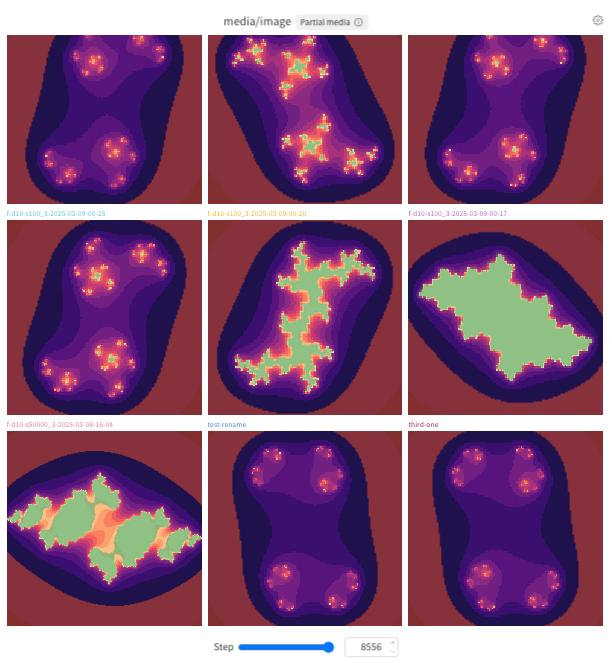
Add a media panel
To add a media panel for a logged key using the default configuration, use Quick Add. You can add a media panel globally or to a specific section.- Global: Click Add panels in the control bar near the panel search field.
- Section: Click the section’s action
...menu, then click Add panels. - In the list of available panels, find the key for the panel, then click Add. Repeat this step for each media panel you want to add, then click the X at the top right to close the Quick Add list.
- Optionally, configure the panel.
- Global: Click Add panels in the control bar near the panel search field.
- Section: Click the section’s action
...menu, then click Add panels. - Click the Media section to expand it.
- Select the type of media the panel visualizes, 3d objects, images, video, or audio. The panel configuration screen displays. Configure the panel, then click Apply. Refer to Configure a media panel.
Configure a media panel
Panels for all media types have the same options. When you add a media panel manually, its configuration page opens after you select the type of media. To update the configuration for an existing panel, hover over the panel, then click the gear icon that appears at the top right. This section describes the settings available in each tab.Overlays
This tab appears for images and point clouds logged with segmentation masks or bounding boxes.- Search and filter overlays by name.
- Customize overlay colors.
Sync
This tab appears in the workspace and section settings.- Sync slider by key: Configure whether the step sliders for videos in the section move in sync.
- Autoplay videos: Configure whether videos start playing when the page is loaded.
- Loop videos: Configure whether videos in the section restart automatically and play continuously until stopped. Not customizable at the section level. Appears only if the workspace has video media panels.
Display
Customize the panel’s overall appearance and behavior.- Configure the panel’s title.
- Select the media keys to visualize.
- Customize the panel’s slider and playback behavior.
- Configure the slider key, which defaults to Step.
- Set Stride length to the number of steps to advance for each click of the slider.
- Turn on or off Snap to existing step. If it is turned on, the stepper advances to the next existing step after Stride length. Otherwise, it advances by Stride length even if that does not align with an existing step.
- Images: Turn on or off smoothing.
- 3d objects: Configure the background color and point color.
Layout
Customize the display of the panel’s individual items.- Optionally limit the Max runs to include in the panel.
- Optionally specify a Media display limit to limit the number of media items to include per run.
- Images and videos: Set Panel mode:
- Gallery (default): Specify the number of columns and whether shows a single item per step, run (default), or index.
- Grid: Specify the number of columns, the x axis (defaults to Log Step), and the y axis (defaults to Run).
- Compare: Compare up to 4 media items side by side, optionally fanning out by step or index. See Compare mode for details.
- Images and videos: Turn on or off (default) Use original size.
- Images and videos: Turn on (default) or off Fit to available space.
- Point clouds: Optionally turn on the right-handed system for plotting points, rather than the default left-handed system.
All media panels in a section
To customize the default settings for all media panels in a section, overriding workspace settings for media panels:- Click the section’s gear icon to open its settings.
- Click Media settings.
- Within the drawer that appears, click the Display, Layout, or Sync tab to configure the default media settings for the section. You can configure settings for images, videos, audio, and 3d objects. The settings that appear depend on the section’s current media panels.
- Click the Sync tab.
- Turn on Sync slider by key (Step).
All media panels in a workspace
To customize the default settings for all media panels in a workspace:- Click the workspace’s settings, which has a gear with the label Settings.
- Click Media settings.
- Within the drawer that appears, click the Display or Layout tab to configure the default media settings for the workspace. You can configure settings for images, videos, audio, and 3d objects. The settings that appear depend on the workspace’s current media panels.
- Click the Sync tab.
- Turn on Sync slider by key (Step).
Compare mode
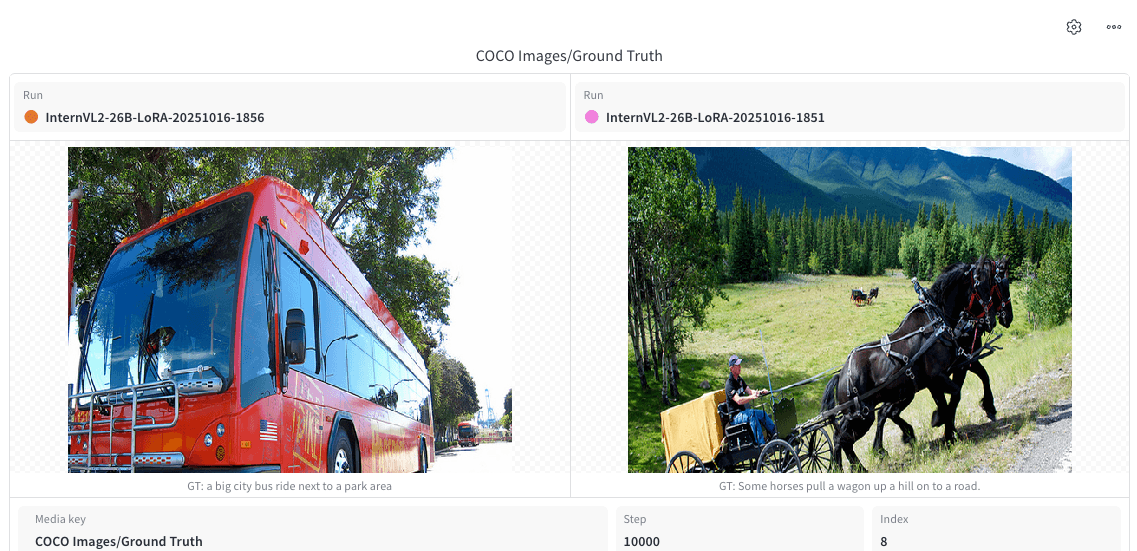
Compare mode lets you select 2 to 4 images or videos from any combination of runs, steps, or indices and view them in a single grid. You can compare media without downloading files or switching tabs. Use compare mode to:- Confirm that a new checkpoint or run produces better outputs than a baseline or previous checkpoint.
- Catch regressions by comparing the current run to a known good checkpoint at the same step or index.
- Validate model outputs against ground truth by viewing reference and generated media side by side.
- Review how generated images or videos change across training steps or across different checkpoints or runs.
- Open a media panel in your workspace (for images or video).
- Set Panel mode to Compare.
- Configure the grid by specifying the number of columns and the fan out mode. The best grid geometry depends how your runs log media.
- Number of columns: How many items to show per row, from
1to4. - Fan out: Control what a row represents.
- None: (default): No fan-out. For each run, each grid column shows a single logged item.
- Step: Fan out along the step axis. For each run, each grid row shows a single logged item at a given step.
- Index: Fan out along the index axis. When you log several items per step (for example,
run.log({"images": [img0, img1, img2, img3]})), each item has an index. When you fan out by index, each grid row shows shows the item logged at a given step:index combination.
- Number of columns: How many items to show per row, from
- Configure whether a given variable affects a single tile (Individual) or all tiles (Linked).
- Media key: Defaults to Linked.
- Run: Defaults to Individual.
- Step: Defaults to Linked.
- Index: Defaults to Linked.
Interact with a media panel
- Click a media panel to view it in full-screen mode. Click the arrow button at the top of the panel to exit full-screen mode.
- To navigate through a section’s panels without exiting full-screen mode, use either the Previous and Next buttons below the panel or the left and right arrow keys.
- To move a media panel’s step slider, use CMD + left or right arrow key (macOS) or Ctrl + left or right arrow key (Windows / Linux). If Sync slider by key is turned on for the section or workspace, moving the step slider in one media panel also moves the step slider in other media panels with the same step slider key.
- Use the stepper at the top of a media panel to step through media runs. To move the step slider, use the UI controls.
- Use the media controls to play, pause, or stop video playback. If Sync video playback is turned on, all videos in the section play in sync. If Loop videos is turned on, videos in the section restart automatically and play continuously until stopped.
- To configure a media panel, hover over it and click the gear icon at the top.
- For an image that was logged with segmentation masks, you can customize their appearance or turn each one on or off. Hover over the panel, then click the lower gear icon.
- For an image or point cloud that was logged with bounding boxes, you can customize their appearance or turn each one on or off. Hover over the panel, then click the lower gear icon.